
Chapter 14.4
The Assistant
Ask about the books in plain words, drop in receipts and bills, and approve the entries the Assistant proposes. How the owner turns it on, what the data notice says and how its versions work, what the Assistant may read and for whom, how proposals wait for approval, and how the records named in an answer open with one click.
When you finish this chapter you will be able to:
- Turn the Assistant on as the owner, and say what you agree to.
- Explain the notice versions, and turn on new abilities when the notice changes.
- Say what the Assistant may read, for whom, and what it never sends.
- Approve, edit, reject and undo a proposal, and choose a level.
- Use the record links in an answer.
Contents
What the Assistant is
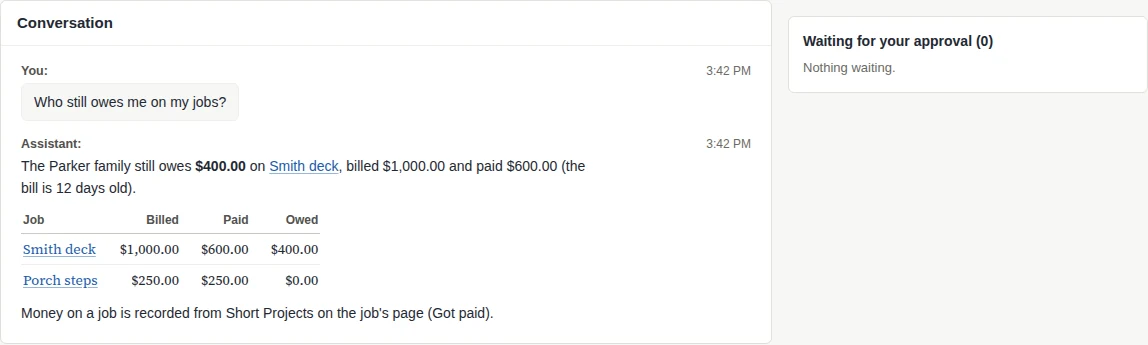
The Assistant answers questions about one set of books, in plain language, from the books themselves: "What did we spend on fuel this quarter?", "Who still owes me on my jobs?". It can also read a receipt or bill you drop in and propose the entry, or record a transaction you describe. It proposes; at the usual level a person approves each entry before anything reaches the books.
It lives in three places: Assistant in the left menu (the full page, with the conversation, the proposals waiting and the history), the Assistant card on the Dashboard (Chapter 1.4), and Settings → Assistant, where the owner controls it.
To answer, the Assistant sends parts of the books to an outside AI company. The data notice names that company and links its business terms and privacy policy; read it before you agree.
| Who | What they can do |
|---|---|
| The owner of the books | Turns the Assistant on or off, agrees to the data notice, sets the levels for everyone, reads everyone's conversations for 90 days, keeps or erases its notes |
| A member with the AI Assistant permission | Uses it after reading a short notice once; with Create on that permission, proposes only the kinds of entry their own permissions let them make |
| BizBooks360 staff | See how much it is used and what it costs, not the conversations |
Turn the Assistant on
- 1
As the owner, open Assistant, the Dashboard card or Settings → Assistant
The card Turn on the Assistant for your books explains it in one paragraph, then the notice in folding sections: What it sends outside BizBooks360, What it never sends on its own, It can be wrong, Who can see conversations, Turning it off and other controls and How long data is kept. Its foot names the notice version and date. On Settings → Assistant, Review and turn on takes you to the same card.
- 2
Read every section, then tick the agreement
"I understand what the Assistant sends outside BizBooks360 and agree to turn it on for" the books. The button waits for the tick.
- 3
Click Turn on the Assistant
Your agreement and the switch are recorded together. Not now leaves it off.
Each member who uses it afterwards sees a short notice once, ending with a link to the full one in Settings → Assistant → Data notice, and clicks Got it.
To turn it off, the owner clicks Turn the Assistant off on Settings → Assistant. That ends every open conversation at once and nothing further is sent. Conversations still expire after 90 days, documents that produced an entry stay with it, and the notes stay until the owner erases them with Forget everything. The same page shows Usage this month: your turns, the books' turns, tokens and the estimated cost against the month's allowance. The Assistant stops when the allowance is used up; BizBooks360 support can raise it.
Notice versions and new abilities
The data notice lists, one bullet each, the kinds of data the Assistant may send. When the Assistant learns to read something new, the notice gains a bullet and a new version number. Your agreement is to one version: books that agreed to an earlier version keep exactly the Assistant that version described, with the same lookups and the same bullets, until the owner agrees to the new one.
| Version | Date | What it added |
|---|---|---|
| 1 | October 14, 2026 | The conversation and the documents dropped in; the books' dates, currency and counts; accounts and balances; products; customers, vendors and employees; entries and imported lines waiting; payroll entries for the people who may run payroll; the notes it keeps |
| 2 | November 3, 2026 | Projects and time, Property Management records (properties, leases and tenants), and payroll details |
| 3 | November 14, 2026 | Short Projects jobs: "what each job was billed, paid, spent and made, what helpers are still owed, who still owes money and the costs on no job yet" |
When the notice changes
- 1
Read the line on Settings → Assistant
"The data notice changed. Review it and agree to turn on the new abilities." Click Review the update.
- 2
Read An updated data notice is ready
"The Assistant in" your books "keeps working as it does now. Agree to this version to turn on what it adds." The new bullets carry a New tag, and What changed says it in one sentence. Below it, The notice you agreed to still shows the version in force.
- 3
Tick "I have read the updated notice and agree to it." and click Agree and turn on the new abilities
The on/off switch stays as it was. Members read the short notice again the next time they use the Assistant.
Rarely, a change is one the old agreement cannot cover. Then the Assistant pauses in the books and the owner sees The Assistant's data notice has changed with Agree and continue or Keep it paused.
What it can read
The Assistant reads the books as the person asking. It never sees more than that person may open on the pages themselves, and a module's data is read only where the books' plan includes the module and the notice the owner agreed to names it.
| Area | For whom |
|---|---|
| Accounts and balances, products, contacts and their history, entries, imported bank and card lines still waiting on Imbalanced (Chapter 4.3), default accounts and possible duplicates | Everyone who may use the Assistant, each within their own permissions |
| Financial reports: Profit and Loss, Balance Sheet, Trial Balance, Aged Receivables, Aged Payables, Cash Forecast and Budget vs Actual; in rental property books also Rental properties | Each report behind the permission of its own page; Budget vs Actual only where the plan includes budgets |
| Projects: contracts and their lines, funding, cost, revenue, billed and unbilled, hours | Where the plan includes Projects and the person may read the project pages |
| Property Management: properties, units, leases and tenants, what each lease owes, deposits held, vacancies, work orders, rental owners' balances | Where the module is on and the person may read those pages |
| Timekeeping: hours by type, timesheets waiting, time and expense claims not yet billed; never pay or cost rates | Where Timekeeping is on and the person may read it |
| Payroll details: pay runs, paychecks, payroll taxes owed, register totals | Where the plan includes payroll, payroll is on, and the person may run payroll and open that payroll page |
| Short Projects jobs: each job's customer, stage, bid, billed, paid, owed, spent and kept, helpers' hours and what they are owed, the job's history, who still owes money, costs on no job | Where the plan includes Short Projects, the person holds the Short projects permission and the books have a job |
It reads; it does not take shortcuts around the module pages. Asked about a job, it answers with the job's figures and says where to record more: "Money on a job is recorded from Short Projects on the job's page (Got paid)." A voided invoice reads as void in a contact's history, never as unpaid.
Proposals and approval
When you ask for an entry, or drop in a receipt or bill, the Assistant writes a proposal: a card showing the entry, its reasoning and its evidence. It may propose an expense, a check, a bill, a bill payment (several bills at once included), a vendor credit, an invoice with its payment, a customer credit, a journal entry, a transfer, a new contact, a bank rule (Chapter 4.8), or the account for an imported line still waiting on Imbalanced. It proposes only kinds you may create yourself. Each proposal is checked against the real books first: the chart of accounts, closed periods, contacts, numbers and duplicates.
- 1
Open the card under Waiting for your approval
A card that failed a check reads Needs a change: with the first problem, and offers only Edit and Reject.
- 2
If something is wrong, click Edit, change it, then Check
"Checks clean. Approve is available." The original stays on record beside your edit.
- 3
Click Approve, or Reject with an optional reason
On approval the proposal is checked once more against the books as they are now, then posted through the same path the page itself uses, as you. The entry's audit history (Chapter 6.7) names you. The card moves through Posting... to Posted, with a link to the entry.
| The card says | Means | You can |
|---|---|---|
| Waiting for your approval | Checked and ready | Approve, Edit, Reject |
| Needs a change: and the first problem | A check failed | Edit, Reject |
| Posted | In the books | Undo, or open the entry |
| Posted, waiting for approval | Posted under second-person approval; it waits on Accounts → Approvals like one entered on its page | Decide it on the Approvals tab |
| Not posted: and the reason | The page's own check refused it | Try again, Edit, Discard |
| Rejected, Undone, Replaced by a newer version | Closed | Nothing |
| Expired -- ask again | Waited 14 days without a decision | Dismiss, and ask again |
Undo
Undo takes a posted entry back through the same path the page uses. It refuses an entry that has been changed by hand since, that falls in a closed period, that has a reconciled line or that has been paid; then it says why, and the entry must be reversed by hand. Undo of an invoice voids it: the invoice stays on the list, marked void, and keeps the reason you typed. While government contract controls are on, Undo asks for that reason, as the page's own delete does; where no reason is asked, the invoice keeps the reason "Undone from the assistant".
Until it says Posted, nothing is in the books. A rejected, expired or replaced proposal is kept for 90 days and then deleted; the entries themselves, and the record of every approval and posting in the audit history, stay with the books.
Levels: Read, Ask, Assist, Auto
Each person chooses a level for themselves under Automation level for me in these books on Settings → Assistant, within the limits the owner sets.
| Level | What it does |
|---|---|
| Read | Looks things up; proposes nothing. The level of a member without Create on the AI Assistant permission |
| Ask | Posts nothing until you approve. The usual level |
| Assist | Posts expenses and bills up to your cap on its own when the vendor is one of your active vendors, the account is well evidenced (the books' own history, a bank rule or a note you kept) and the document checks out |
| Auto | The same, without needing the account to be evidenced: the Assistant chooses the expense account itself. The vendor must still be one of your active vendors |
The owner sets the limits under Levels for everyone in these books: The highest level anyone may use in these books (the owner's own included), The highest level the people who have access to these books may choose (Ask by default) and The highest auto-post cap any user may set ($500.00 unless changed). Each person's own My auto-post cap stays under it. Raising your level shows Let the Assistant post entries on its own first, with Set level to Assist (or Auto) and Keep level.
Everything else, and every expense or bill over the cap, still waits for a person. Entries it posts on its own are listed under Posted on its own -- check them and can usually be undone from their card.
Record links
When an answer names a record, the name is a link to the record's own page: an invoice, a bill, an expense or check, a payment, a journal entry, an account, a contact, a property, lease or rental owner, a project, a timesheet, a pay run or paycheck, a recurring schedule, an item waiting on Accounts → Approvals, or a Short Projects job. It opens in a new tab, so the conversation stays where it is. Links are made only for records the person reading may open; anything else stays plain words. Your own words never carry links.
Conversations, notes, backups and copies
Each person has one open conversation per set of books. It ends after 30 quiet minutes, after eight hours or 40 turns, when you switch books or sign out, or with New conversation; it is then listed under History. Drop a file in, use Attach, or on a phone Take a photo. A document that produced an entry stays attached to it; one that did not is deleted 30 days after it was dropped in.
When a conversation ends, the Assistant may offer notes about how these books are handled, such as the account a vendor's bills go to. A mapping, a handling rule or a policy is used only once a person keeps it: each offered note has Keep, Edit and Discard. The notes are listed under What I remember about these books, and the owner can read, edit or erase them on Settings → Assistant.
Backups and copies. The owner's choices (the levels, the cap, the sales tax setting) and the kept notes travel with a backup (Chapter 14.3) and a copy (Chapter 15.6). Conversations and proposals do not. The switch and the agreement never travel: restored or copied books start with the Assistant off, and their owner reads the notice and agrees again.1 Whether the new books may use the Assistant at all is a matter of their own plan; a paid add-on of the original does not carry over.
Using the Assistant safely
- [x] The owner read every section of the notice before agreeing.
- [x] Only the people who should use it hold the AI Assistant permission.
- [x] The level stays at Ask until the proposals have proved themselves.
- [x] Posted on its own -- check them is read whenever it has entries.
- [x] A changed notice is reviewed promptly, so new abilities are turned on knowingly.
Check your understanding
1. A member asks who owes money on jobs, and the Assistant cannot answer. The owner agreed to version 2. Why?
Answer
Short Projects jobs arrived in version 3. Until the owner agrees to it, the books keep the Assistant version 2 described.
2. Does agreeing to an updated notice turn a switched-off Assistant on?
Answer
No. Agreeing to an update leaves the on/off switch as it was.
3. At Ask, you approve a proposed bill. Whose name is on the bill's audit history?
Answer
Yours: it is posted through the same path as the bill page, as the person who approved it.
4. Undo refuses a posted check. Name one reason.
Answer
It was changed by hand since, it falls in a closed period, a line of it is reconciled, or it has been paid.
5. You undo an invoice the Assistant posted. What is left on the invoice list?
Answer
The invoice, marked void, with the reason you typed (or "Undone from the assistant" when none was asked).
6. You restore a backup. Is the Assistant on in the restored books?
Answer
No. It starts off; the owner reads the notice and agrees again, and the books' plan must include it.
Notes
- From the backup engine's notes on the Assistant settings: restored or copied books start with the switch off until their owner agrees and turns it on, and the consent "is given by the owner of these books, never carried over". The kept notes "take effect only once the restored books is entitled, enabled and consented". ↑