
Chapter 7.4
Short Projects: Small Jobs from Bid to Paid
For the tradesperson's small jobs: start a job with just its name, bid it, take money in, spend on it, pay a helper, log hours, and read in plain numbers what each job paid you, what it cost and what you made. With the reports that answer who still owes you and which costs are on no job yet.
When you finish this chapter you will be able to:
- Start a job, give it a bid and move it from bid to done.
- Add extras, and say how they change the price.
- Record money in (Bill the customer, Got paid) and money out (Spent money, Paid a helper).
- Log your own hours and a helper's, and read "per hour of your time".
- Find who still owes you, and put costs that are on no job onto the right one.
Contents
What Short Projects is
Projects (Chapters 7.1 to 7.3) is built for contracts with funding, contract lines and cost reports. A plumber, a painter or a handyman needs four answers about any job, quickly and on a phone: what did I get paid, what did I spend, what did I make, and was it worth my time. Short Projects gives those four answers without an accounting word.
It keeps no second set of figures. Every button that moves money writes the ordinary documents of the books (an invoice, a payment, an expense, a check) tagged with the job, so the Profit and Loss and the job agree. Your own hours are recorded but are never a cost.
Short Projects has its own entry in the left menu. It shows where the books' plan includes it and Settings → Menus and words (Chapter 15.2) shows it; books set up as a small business or a service or repair shop show it from the start.
| Word on screen | Means |
|---|---|
| Job | One short project |
| Bid | The price you told the customer (optional) |
| Extra | Work added after the bid; it raises the price, and a minus amount is a credit |
| Price | Bid plus extras; for a time and materials job, what was billed |
| Billed | The job's invoices, sales tax left out |
| Paid | Money received for the job |
| Still owed to you | Billed and not yet paid |
| Spent | Materials, helpers and other costs of the job |
| You made | Paid minus spent |
| You kept | Made as a percent of paid, shown only on a done job |
| Your hours | Your own time, never a cost |
| Per hour of your time | Made divided by your hours |
| Helper | Someone you pay for labor on a job who is not on payroll |
| Owed to helpers | Helper hours logged and not yet paid |
The jobs page
Click Short Projects in the left menu. On the first visit, before there is a job, the page says Start a job with just its name. Add the customer and the bid when you know them. with one button, Start your first job. Once there are jobs, the page looks like Figure 1.
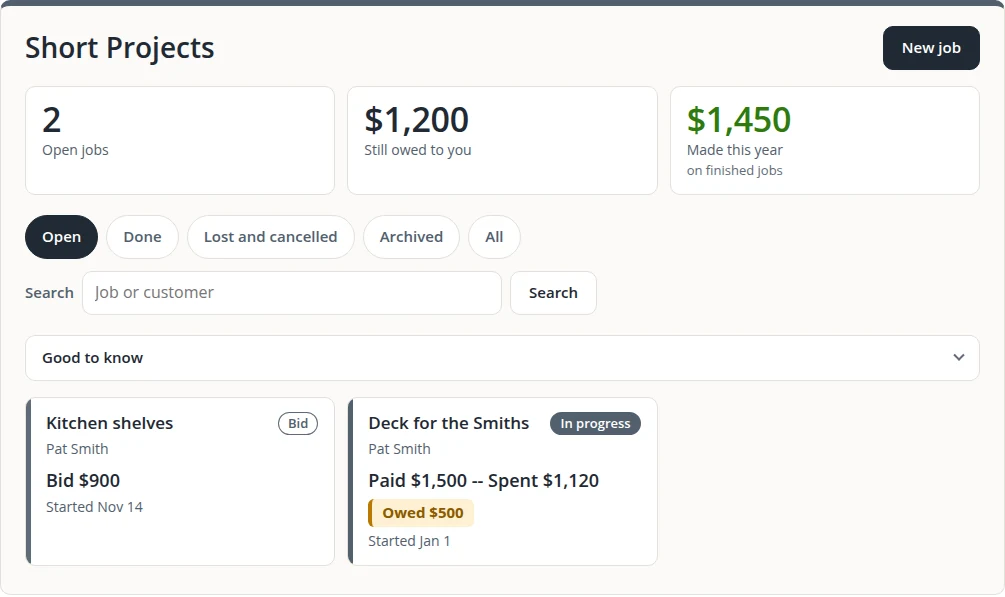
Good to know folds open to a few tips and a link, Change your pay rate and where job money goes (Section 5). An open job never shows a percent: it shows what was spent so far and, when a price is known, what it is on track to make. Click a card to open the job's page: its next-step button at the top, the four money buttons, its numbers, Bid and extras, Helpers on this job and What happened, the job's own time line of money, hours and extras.
Start a job and bid it
- 1
Click New job and type the Job name
The name is all a job needs. Add the Customer, Job address, Start date and Bid now or later.
- 2
Tick This is still a bid if the customer has not said yes
The job then starts as a Bid; otherwise it starts In progress.
- 3
Optionally, Build a bid
Enter what you expect the job to cost (Materials, Helpers, Other costs), My hours and Pay myself, per hour, and how much to add on top. The builder works out a bid to the nearest dollar and shows what you would keep, per hour and after paying yourself, if the job goes as bid. Use this bid copies it into the job; the builder itself writes nothing to the books.
The builder says it plainly: Your own time is not a cost. The bid covers it when you pay yourself. Clear the pay rate to leave your own pay out of the bid.
Stages
The button at the top of a job's page is always the next step: Won it moves a bid to In progress, Mark done moves it to Done, and Reopen takes a done, lost or cancelled job back. More holds Edit, Copy job, Archive, and, for an open job, Lost and Cancel job, then Delete. A lost bid has no effect on the books. Every move is kept in the job's history.
Bid and extras
The Bid and extras part of the job page shows the Bid, the Extras and the Price, their sum. When the customer asks for more, click Add an extra and give a date, What is the extra work? and an amount; to take money off the price, enter a minus amount, like -100. Write an estimate for the customer opens a new estimate (Chapter 2.2) for the job.
Example: the deck was bid at $4,000. The customer adds a railing for $300, so the price is $4,000 + $300 = $4,300.
Money in and money out
Four buttons on the job's page move money: Bill the customer, Got paid, Spent money and Paid a helper. Each one checks first that the date is not in a closed period (Your books are closed through ... Pick a later date.), and each needs your right to make the document it writes. A button pressed twice saves once.
| Button | What you fill in | What it writes in the books |
|---|---|---|
| Bill the customer | The lines (Add a line), and a Sales tax rate or No sales tax; then Make the bill, and after it Send it or Print it | An ordinary sales invoice for the job |
| Got paid | Who paid you? (the job's customer, a new name, or Walk-up customer), the amount, how (cash, check, card, app transfer), Paid into, the Check number; tick This is a tip for a tip | Payments against the job's open bills, oldest first. Money beyond them, or a deposit before any bill, becomes a one-line bill paid at once, never a customer credit. A tip is its own one-line bill paid at once, and it never changes the price |
| Spent money | Where you bought (a store or supplier), What for (Materials, Rental, Permit or fee, Fuel and travel or Other), Paid from (a bank, a card, cash or My own pocket), a Receipt photo or file | An ordinary expense on the job's cost account. With This is a return ticked, money back from the store: it lowers what the job spent |
| Paid a helper | Who, then tick the unpaid hours (Pay these 6 hours -- $150.00), or Pay as A set amount or Hours x rate; Paid from | From a bank, a check to the helper; from cash or your own pocket, an expense. The hours ticked are marked paid |
A few details save time:
- Split across jobs puts one receipt on several jobs, one row each; a personal or shop part can go on Not for a job.
- Work it out from miles turns miles driven into an amount at your mileage rate.
- A receipt that looks like one already entered asks Looks like one you already entered -- save anyway? Saved anyway, it counts twice.
- Receipts are photos or PDFs of at most 10 MB each, kept on the entry.
- A helper on payroll is warned off: Is this person on your payroll? Pay them through Payroll instead.
- Where checks need a second person's approval, Paid a helper says Saved. The check waits for a second person to approve it. If a helper's check is later voided, those hours are owed again.
- One check that pays for two jobs: enter a Got paid on each job for its part. Card or app fees taken out of a payment are a cost: enter them under Spent money as Other.
A cost typed on the ordinary expense, check or bill pages (Chapters 3.1 and 3.2) lands on the job too when you choose the job in the form's project field. A refund to a customer is an ordinary check or expense to them, with the job chosen and Job income as what it was for: it comes off what you were paid.
Hours
- 1
On the job, click Log hours
- 2
Choose Whose hours: Me or A helper
Then the date, the Hours and, for a helper, the Rate. A helper's rate is filled in from the last one used and stored on the row, so a later rate never re-prices old work. For your own hours the sheet reminds you: Your own time is not a cost. It shows what the job paid you per hour.
A job therefore reads three ways: You made (paid minus spent), per hour of your time (made divided by your hours), and, once you set a pay-yourself rate in the settings, what is left after paying yourself. Helper hours not yet paid count as spent at once, under Owed to helpers, so a job never looks better than it is. Helpers on this job lists each helper's earned, paid and owed amounts, with Pay what is owed.
Example: the deck has been paid $1,500 and has spent $1,120, so it made $1,500 − $1,120 = $380. With 10 of your own hours logged, that is $380 ÷ 10 = $38 per hour of your time.
Finishing, copying and archiving a job
Mark done asks Mark this job done? If money is still open it adds Some money on this job is still open. You can mark it done anyway; late money still lands on it. A done job shows You kept as a percent; a job priced at nothing with costs reads Done at no charge rather than a loss percent. A late receipt or payment still lands on the done job, and its figures follow.
Dates never cut a job: its figures are the whole job, whatever tax year the money fell in. The year reports cut by the money's own date and say so.
- Copy job starts next season's job with the same customer, address, description and rate, and the bid if you keep it (Keep the bid). Money, hours, extras and history are never copied.
- Archive hides a job from the open list; it stays under Archived (and Unarchive brings it back), and a payment after archiving still counts.
- Delete works only for a job with no history. A job with money or hours on it is archived instead.
Reports: who owes me, costs with no job
Reports has a Short Projects group, What each job paid you, what it cost and what you made., with seven reports. Each has Print, PDF and Spreadsheet. The Still owed to you tile of the jobs page opens Who owes me.
| Report | What it answers |
|---|---|
| Jobs scoreboard | Every job side by side: paid, spent, made and per hour of your time; its total row totals exactly the rows shown |
| Job card | One job on one page, to hand to a partner or a banker: its figures, bid against actual, and its documents. Also on the job's page as Job card, with Print and PDF |
| Who owes me | Customers who still owe you, by job, with the days since the oldest open bill, and the done jobs not billed in full |
| Helper payments | What each helper was paid in a calendar year, by job and by how it was paid, with the 1099 reminder figure and what is still owed (Chapter 6.9 covers the 1099s themselves) |
| Bid vs actual | Every job with a bid: won, lost, cancelled and still bidding, your win rate, and each won bid against what happened |
| Year in review | The year in one page: money in, money spent and what you made, tied to the Profit and Loss |
| Costs with no job | The costs of a period that are on no job, each with Put on a job or the reason it cannot be put on one here |
Put a cost on a job
- 1
Run Costs with no job for the month
It lists, newest first, the money you spent in those dates that is not on any job, and totals it. Payroll costs are never listed line by line; the report gives their total.
- 2
Pick the job on a line and click Put on a job
Nothing new is written: the cost lines of the expense, check, bill or return are simply tagged with the job. A line that says Part of this is on a job already. is a split cost: another of its lines is on a job, and only the part with no job is listed.
- 3
Deal with the lines that cannot be moved here
A cost dated in a closed period says Your books are closed for this date. A cost on any other kind of document, such as a journal entry, offers Open it to add the job: open it and choose the job there.
Settings, permissions, backups and copies
There is no setup step: the first job sets the module up, choosing or making its accounts. Settings → Short Projects says These settings apply to every job in these books. and holds:
| Part | What it sets |
|---|---|
| Your time | Pay yourself, per hour, used for "after paying yourself" on every job. A job can have its own rate (Pay yourself on this job, per hour in its Edit sheet) |
| Where job money goes | Money you get paid goes into and Money you spend comes from: the accounts the buttons start with. You can pick another each time |
| Mileage | Mileage rate, per mile, behind Work it out from miles |
| Helpers and 1099s | The 1099 reminder figure: a helper's pay for the year above it brings a reminder. Left empty, the federal figure is used: $600 for payments through 2025, $2,000 from 2026 |
| Accounts behind the numbers | Job income, Materials, Helpers, Rentals, Permits and fees, Fuel and travel, Other job costs and My own pocket. You only need to change these if your bookkeeper asks. |
Permissions. The Short projects row of Users and permissions (Chapter 15.7) decides who may list, view, start, change and delete jobs. Its presets: Viewer, Auditor and External auditor may read; Bookkeeper and Accountant may also start, change and delete jobs; Payroll, Employee and Stakeholder get none. The Short Project Reports row follows the same pattern for reading the reports. The money buttons also need the right of the document they write.
Backups and copies. A backup (Chapter 14.3) and a copy (Chapter 15.6) carry the jobs with their bids, extras, hours, stage history, the settings and each helper's last rate. A copy of a date range keeps every job still open (a bid, or a job in progress, not archived), even one not invoiced yet, with its customer, extras, hours and stage history, so the pipeline comes along.
The Assistant. Where the Assistant is on and the owner has agreed to the November 14, 2026 data notice (version 3), it can answer questions about jobs for the people allowed to see them on the Short Projects pages, such as "Who still owes me on my jobs?", and link each job to its page (Chapter 14.4). Money on a job is still entered on the job's page.
A job kept right
- [x] Started with a name the customer would recognize, and a bid if there was one.
- [x] Every extra the customer agreed to added with Add an extra.
- [x] Every receipt entered with Spent money, with its photo.
- [x] Every payment entered with Got paid.
- [x] Your hours and your helpers' hours logged, and helpers paid with Paid a helper.
- [x] Costs with no job run at month-end and emptied.
- [x] Who owes me read every week.
Check your understanding
1. The customer pays a deposit before you have billed anything. Which button?
Answer
Got paid. With no open bill it makes a one-line bill and its payment in one step, so no customer credit is left behind.
2. You logged 10 hours of your own time. Does it raise "Spent"?
Answer
No. Your own time is never a cost; it gives the job's per hour of your time.
3. The customer adds a railing for $300 after the bid of $4,000. What is the price?
Answer
$4,300: the bid plus the extra.
4. A helper's check is voided. What happens to the hours it paid?
Answer
They are owed again and can be paid again with Paid a helper.
5. You bought lumber on the business card and entered it on the Expenses page without a job. How do you fix it?
Answer
Run Costs with no job for that month, pick the job on the line and click Put on a job.
Notes
- From the module's rules: a payment pays tax and income in proportion, so owed is the pre-tax share of what is still open, and only the tax share of what was paid counts as sales tax collected. The job page shows that tax on its own line, Sales tax collected. ↑