
Chapter 1.5
Rental Property Books
What New Books sets up when you choose Rental property: an account group for each property, matched to Schedule E lines, Property Management already switched on, its menu at the top of the left menu, above Dashboard, the rental reports ready under Reports, and no Projects.
When you finish this chapter you will be able to:
- Set up rental property books with New Books, property by property.
- Say what new rental books open with, and why Projects is not there.
- Find Property Management at the top of the left menu, and the rental reports under Reports.
- Run the Rental Properties worksheet for Schedule E or Form 8825.
Contents
- 1Before you begin
- AProcedure A: set up rental books
- 2What new rental books open with
- 3The menu: Property Management above Dashboard
- BProcedure B: the Rental Properties worksheet
- 4Why there is no Projects
- 5Backups and copies of rental books
- 6Checklist: ready to use
- 7Check your understanding
- 8Quick reference card
- §Notes
Before you begin
Rental books are made with the same New Books pages as any other books (Chapter 1.2). Only two pages change: the tax page asks who owns the properties, and page 4 becomes Your properties. Have these facts at hand:
- Each property: a short nickname (such as 12 Oak St), its type, whether it has a mortgage, and its address if you want it on the reports. From 1 to 10 properties.
- Who owns them, for taxes: you (or you and your spouse), a partnership or LLC with two or more owners, or a corporation.
- Security deposits: whether you hold them, and in which bank account.
- How you run them: whether you only record rent as it comes in or invoice tenants, whether a property manager collects rent, and whether you pay contractors.
Rentals you own yourself and rentals held in a partnership LLC go on different returns (Schedule E and Form 8825). Give each owner its own books, as Chapter 1.2 advises for any business.
Set up rental books
Start from the company list (Chapter 1.1) and click New company. Choosing Rental property does more than pick a chart of accounts: it decides which parts of BizBooks360 the books open with.
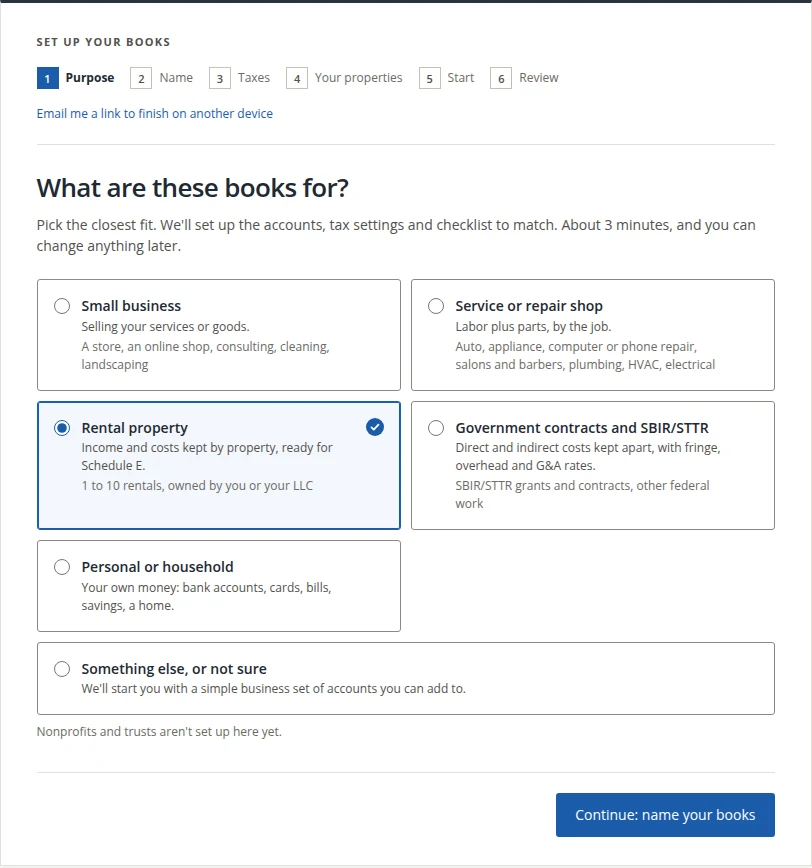
- 1
Page 1. Choose Rental property 1
The card reads "Income and costs kept by property, ready for Schedule E. 1 to 10 rentals, owned by you or your LLC." Where plans are offered, a line under it names what the plan holds: Schedule E by property, Property Management, budgets and their reports, with the Assistant as an add-on. Click Continue: name your books 3.
- 2
Page 2. Name the books and say where they are
The same name, state and time zone as in Chapter 1.2. The state matters more here than for most books: Property Management takes it as the state whose rental rules apply.
- 3
Page 3. Answer Who owns the properties, for taxes?
For rental books the tax page asks about the owners of the properties, and names the return each answer files:
Choice Who it fits Return Me, or me and my spouse You, or a single-member LLC Schedule E with your Form 1040 Two or more owners A partnership or multi-member LLC Form 1065; each owner gets a K-1 S corporation A corporation or LLC that elected S status Form 1120-S C corporation A corporation that pays its own income tax Form 1120 If the rentals are in an LLC you own with your spouse, the page says to choose Two or more owners. The review page later gives the reason for each answer, for example "Because the rentals are yours, not in an LLC."2
- 4
Page 4. Add your properties 2
"Each property gets its own income and expense accounts, matched to Schedule E lines." For each property fill one row:
- Nickname, such as 12 Oak St. The first row is required; rows left without a nickname are dropped.
- Type: Single-family home, Multi-family, Vacation or short-term rental, Commercial, Land or Other.
- Has a mortgage, ticked when it does.
- Address (optional).
+ Add another property adds a row, up to ten. More can be added later in Accounts.
- 5
Answer Do you hold tenants' security deposits?
No, Yes, in my main bank account or Yes, in a separate deposit account. The page reminds you that last month's rent collected up front is rent, not a deposit, and that some states require deposits in a separate account. Then Continue: how you run them.
- 6
Page 4, continued. How you run them
- How do you track rent? I record the rent that comes in (most landlords) or I invoice tenants and track what they owe.
- Does a property manager collect rent for you?
- Do you pay contractors for repairs or cleaning? Payments of $2,000 or more in a year need a 1099 from 2026.
Receivable, manager and contractor accounts are added only when you need them. Then Continue: start date.
- 7
Pages 5 and 6. Start date, review, create
The start date, closing and cash-or-accrual choices are those of Chapter 1.2. On the review page the panel Your books so far lists what is Set up for you, including Schedule E: one group per property with the number of properties. Click Create my books, then Open my books on Your books are ready.
What new rental books open with
Rental books open on the plan for rental property. It holds what a landlord uses and leaves out what a landlord does not:
| Part | In new rental books | Chapter |
|---|---|---|
| Property Management | Switched on for you while the books are made, in the Own portfolio mode, for the state of the books. There is no Enable button to press. | Chapter 13.1 |
| Reports → Rental Properties | Shown in the Taxes group | Procedure B |
| Reports → Property management | The whole report group | Chapters 13.14 to 13.18 |
| Budget | Included | Chapter 8.1 |
| The Assistant | Offered as an add-on | Chapter 14.4 |
| Projects and the Projects reports | Not included | Section 4 |
The switch is the same one the owner's Enable button sets, made in the owner's name, so the module's overview page shows Own portfolio and the day it went on, just as after the button. Only that main switch is turned on. The other settings start where the Enable button starts them, so read through Settings → Property Management before anything goes to a tenant (Chapter 13.1).3
If the switch could not be turned on while the books were made, the books are made anyway, and the owner sees the usual Enable button in Settings → Property Management. Press it once, as Chapter 13.1 shows.
The menu: Property Management above Dashboard
In rental books the day's work is rent, tenants and repairs, so Property Management sits first in the left menu, directly above Dashboard. It sits there in every set of books that shows it, rental or not.
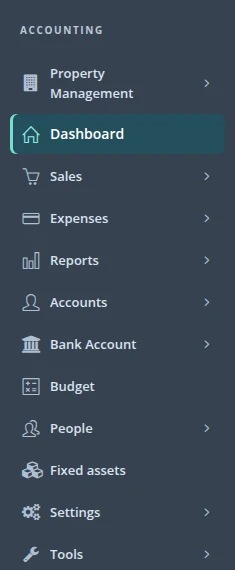
Click Property Management to fold it open: a Find a page box, Today and Tasks, then the groups Money, Maintenance, Leasing, Properties and people, Month-end, Communication and Settings. Volume 13 explains each page. In books with no lease yet, Money → Rent roll says "No leases yet." and offers Add the first lease (Chapter 13.4).
The Rental Properties worksheet
Two parts of Reports are there for rental books with no clicks. The first is Rental Properties, in the Taxes group: "Each property's income and expenses on Schedule E or Form 8825 lines."
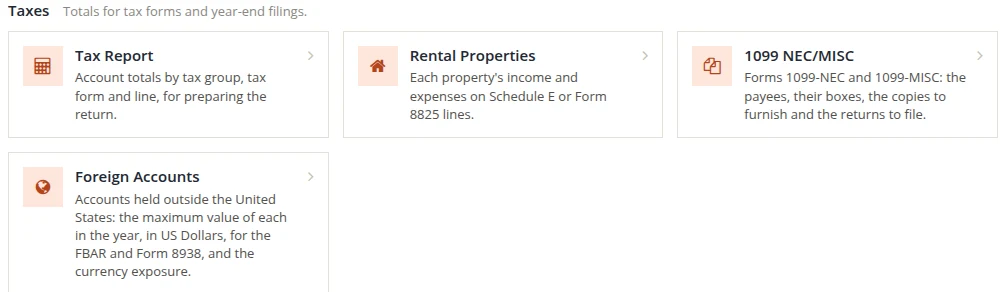
- 1
Open Reports → Rental Properties 1
Or type
rentalin Find a report. The page is titled Rental properties: income by property. - 2
Choose Lines 1 and Tax year 2, then Show 3
Lines is Schedule E (Form 1040) or Form 8825 (partnership or S corporation). Books whose fiscal year does not follow the calendar see Fiscal year beginning in instead of Tax year.
- 3
Read one column per property A
Each column heads with the property's nickname, then its address and type (line 1). Line 3 is rents received, lines 5 to 19 the expenses, line 20 their total and line 21 the income or loss B. The Total column adds the properties up.4
- 4
Hand it on with Download CSV
The button at the top of the page gives the same lines to a spreadsheet or a tax preparer.
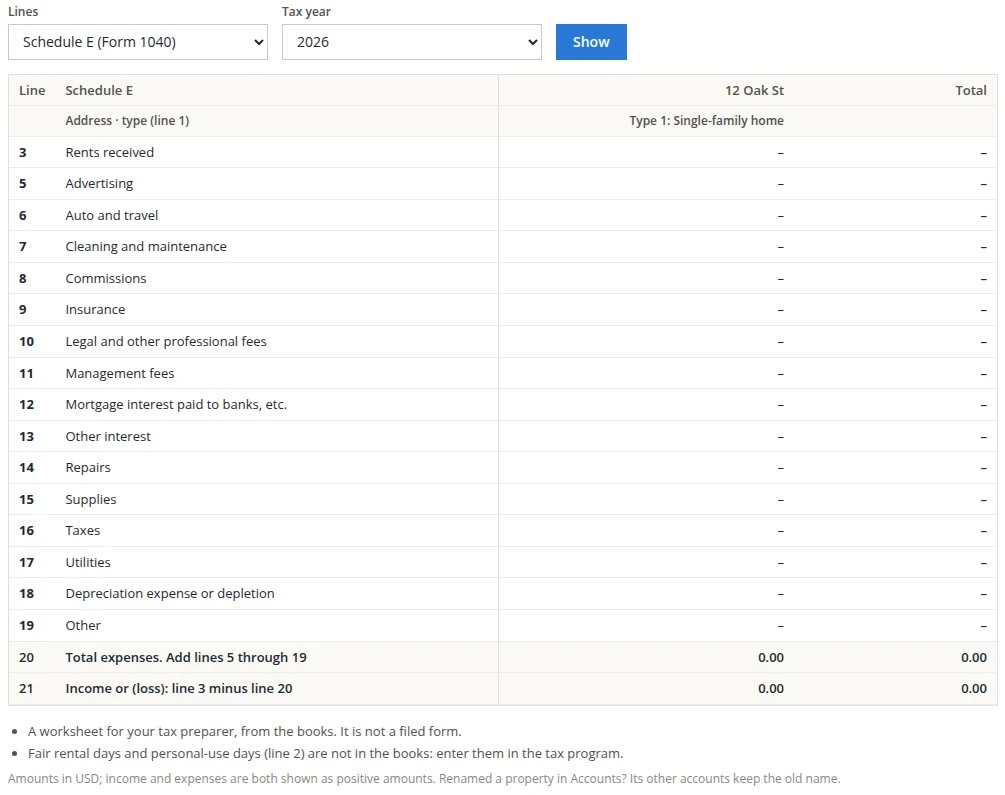
The page says what it is C: "A worksheet for your tax preparer, from the books. It is not a filed form." and "Fair rental days and personal-use days (line 2) are not in the books: enter them in the tax program."
The rental schedule for partnerships (Form 8825) is not in the Tax Report (Chapter 6.8) yet. Use this worksheet for it: the accounts are still kept by property.
Why there is no Projects
Projects (Volume 7) keeps the income and cost of contracts and jobs. In rental books the property already does that job: every property has its own income and expense accounts, and both the Rental Properties worksheet and the Property management reports split by property. A second way to tag the same money would only invite mistakes, so rental books do not show:
- the Projects entry of the left menu;
- the Projects group of Reports and its report cards;
- a Project switch in Settings → Menus and words (Chapter 15.2), which is offered only where the plan holds Projects.
Nothing rental books need depends on Projects: the properties, Property Management and the assets kept by property all work without it. A repair goes on the property's own expense account, or on a work order in Property Management (Chapter 13.8).
Backups and copies of rental books
A restore (Chapter 14.3) or a copy (Chapter 15.6) of rental books keeps the answers given at setup, so the new books open on the rental plan again. Property Management comes back on by itself when it was on in the original and the new books' plan includes it. Its e-mail sending, inspection app, outside services and listings feed stay off until someone with the right to edit its settings turns them on.
A backup does not carry the plan, paid add-ons, access given to staff, or tenant and owner portal access: invite those people again in the new books.
Checklist: new rental books, ready to use
- Every property entered in New Books, with the right type and mortgage answer.
- Property Management above Dashboard, already on.
- Its settings read through before the first message goes to a tenant.
- Each property's building added in Assets with its own depreciation accounts.
- Security deposits entered per property, if you hold any.
- Rental Properties run once for the year, to see one column per property.
Check your understanding
1. You made rental books with New Books. Do you need to press Enable in Settings → Property Management?
Answer
No. The setup switched the module on for you. The button is there only if switching it on failed while the books were made.
2. Where is the Schedule E worksheet?
Answer
Reports → Taxes → Rental Properties, with Lines set to Schedule E (Form 1040).
3. A landlord looks for Projects to track a roof repair. Where should the cost go instead?
Answer
On the property's own expense account, or on a work order in Property Management (Chapter 13.8). Rental books do not include Projects; the property already splits the money.
4. Your rentals are in an LLC you own with your spouse. Which tax answer do you choose?
Answer
Two or more owners. The LLC files Form 1065, and its rental lines are those of Form 8825.
5. You restore a backup of rental books that had Property Management on. Is it on in the restored books?
Answer
Yes, when the restored books' plan includes the module. Its e-mail sending, inspection app and outside services stay off until you turn them on.
Quick reference card
Set up
- New company, then Rental property.
- Name, state, time zone.
- Who owns the properties, for taxes.
- Add your properties, deposits.
- How you run them.
- Start date, review, Create my books.
What you get
- Accounts by property, on Schedule E lines.
- Property Management on, above Dashboard.
- Reports: Rental Properties and Property management.
- Budget. The Assistant as an add-on.
- No Projects.
First week
- Read Settings → Property Management.
- Add each building in Assets.
- Enter the deposits you hold.
- Add the first lease.
- Work down Get your books going.
Notes
- Notes give background, exceptions and the reasons behind a rule. You can follow every procedure without them. ↑
- When Two or more owners is chosen for rental books, the page adds that the rental schedule for partnerships (Form 8825) is not in the Tax Report yet; the accounts are still kept by property. ↑
- The module is switched on only when the books' plan includes it, which the rental plan does. The owner can still turn it off later in Settings → Property Management, as in any other books. ↑
- A Not split yet column appears when the portfolio-wide account, Portfolio (All Properties), holds amounts that belong to no single property. Under the table: amounts are shown in the books' currency, income and expenses both as positive amounts, and a property renamed in Accounts keeps the old name on its other accounts. ↑
- The rental plan was changed on November 14, 2026 to drop Projects and the project reports. Books already on the earlier version were not moved automatically. ↑